Google Drive File Preview Guide for macOS
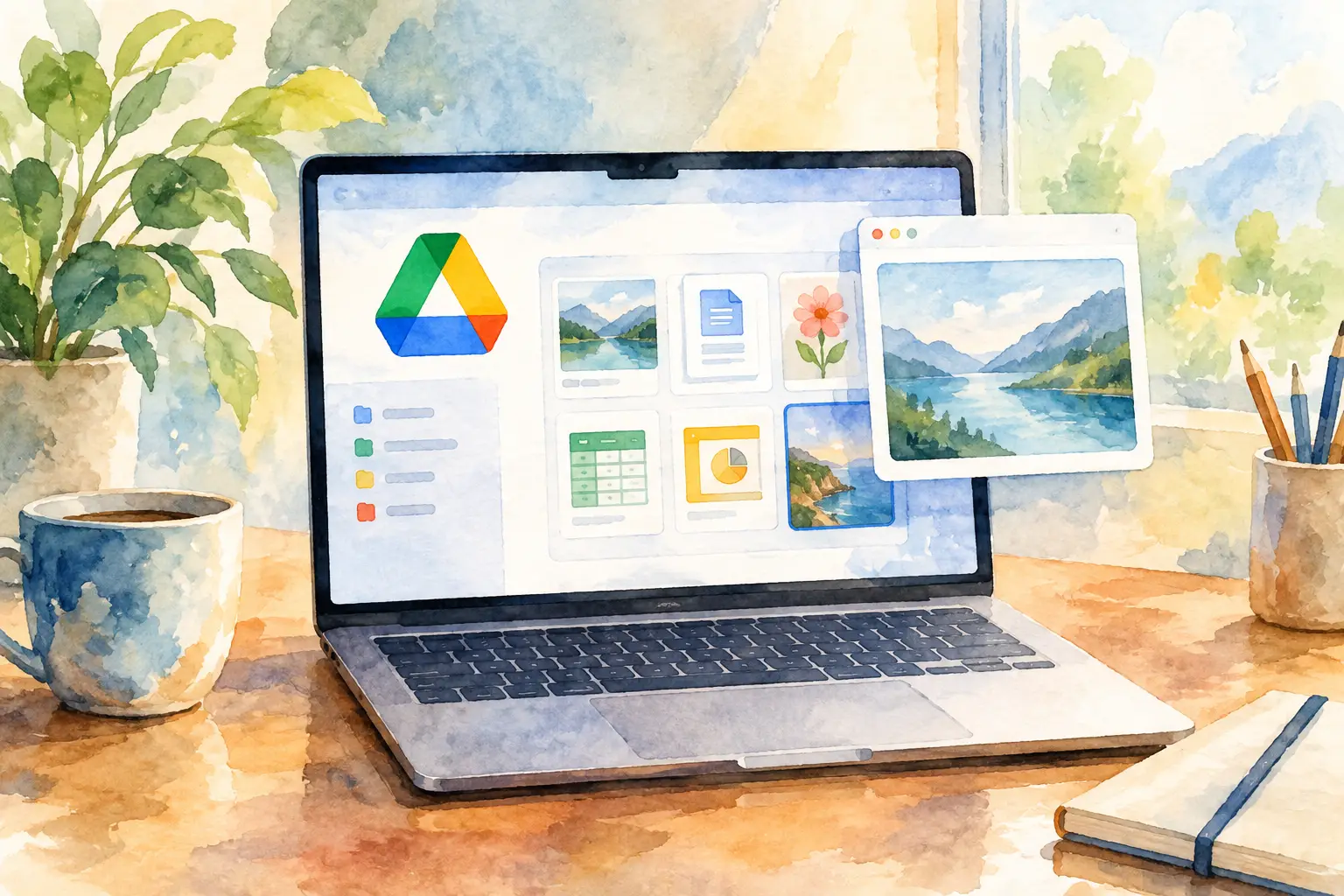
A cloud icon next to a file in Finder looks harmless until you press Space and get no useful preview. For developers and macOS power users, that interruption is costly: you stop scanning a project, wait for a download, open a browser tab, or guess which version is current. This Google Drive file preview guide explains what is actually happening between Google Drive for desktop, Finder, and Quick Look - and which fixes are worth using.
The short version is simple. Finder can preview files that exist locally and that macOS understands. Google Drive can show files that are present only as placeholders, and placeholders are not the same thing as a local file. The difference determines whether Space bar previewing is instant, delayed, incomplete, or unavailable.
How Google Drive previews work on a Mac
Google Drive for desktop integrates with Finder through a mounted Google Drive location. In streaming mode, Drive keeps most content in the cloud and exposes it locally as placeholders. You can see names, folder structure, timestamps, and sync status without downloading every file to your Mac.
That is efficient for storage. It is less predictable for previews.
Quick Look is a macOS system service. When you select a file and press Space, Finder asks the relevant Quick Look generator to render it. For a PDF, image, source file, or standard Office document, macOS often has a built-in handler. For specialized formats, another installed app may provide one. But Quick Look needs readable file contents. If Drive has not materialized the placeholder yet, the preview request can trigger a download, fail, or show only limited metadata.
This is why a file can appear perfectly normal in Finder while behaving differently from a file stored in Downloads or a Git checkout. Its location is visible. Its bytes may not be local.
Start by checking whether the file is local
Before changing settings or installing another viewer, inspect the file's Drive status. A cloud indicator generally means the item is online-only. A checkmark or equivalent synced state indicates that a local copy is available, although the exact icon can vary with Drive versions and Finder display settings.
Right-click the file or folder and look for the Google Drive actions. The useful action is typically available offline. Naming varies slightly by release, but the goal is the same: tell Drive to retain a local copy rather than evicting it when disk space is needed.
Use this selectively. Pinning an entire shared media archive defeats the point of streaming. Pinning the active project folder, design review exports, reference documents, and files you routinely inspect gives Quick Look a dependable local target.
For a single file, opening it once may download it, but that is not the same as keeping it offline. Drive can remove local content later under storage pressure. If preview reliability matters, mark the item or its parent folder for offline access.
Streaming versus mirroring
Google Drive for desktop offers two storage models. Streaming keeps files primarily in the cloud and downloads on demand. Mirroring stores a local copy of Drive content and synchronizes changes in both directions.
Streaming is the right default when Drive is large, disk space is finite, or most files are archival. Expect occasional preview latency, especially after reboot, on a weak connection, or when inspecting files you have not touched recently.
Mirroring is more predictable for a small working Drive or a dedicated work Mac. Files are local, Finder search has more to work with, and Quick Look behaves closer to a normal folder. The trade-off is obvious: it consumes local storage and increases the scope of data held on the machine. For sensitive shared drives or large binary assets, that may be unacceptable.
Use Quick Look for the formats macOS handles well
Once a file is local, Quick Look is often the fastest path to an answer. Select it in Finder, press Space, and use the arrow keys to move through adjacent files. This is especially effective for PDFs, images, videos, plain text, common source files, and many document types.
For engineering work, Quick Look is useful for confirming the basics without starting an editor: which JSON fixture contains the expected field, whether an SVG export is the right asset, whether a Markdown handoff has the correct release notes, or whether a log bundle is worth opening.
It is not an IDE, and it should not be treated like one. Large files can be slow, syntax highlighting is not guaranteed, and binary or custom formats depend on installed preview support. A preview is for triage. Open the correct tool when you need to edit, validate, or compare.
Why Markdown and SVG can be inconsistent
Markdown and SVG are common examples of files that look straightforward but expose differences between Finder, installed apps, and cloud placeholders. Markdown is text, so Quick Look may show raw source rather than rendered output. SVG is XML-based vector content, but preview behavior can vary with the file's features, security restrictions, and the app that registered a Quick Look extension.
If you work from Drive with these formats frequently, test the exact files your team ships. A minimal SVG may preview quickly while a larger export with external references does not. A README may be readable as source but not rendered as the document your reviewers expect. Relying on assumptions here creates small, repeated delays.
Purpose-built Finder preview extensions can help where system behavior is limited. The relevant constraint remains the same: the file must be accessible locally enough for the extension to read it. A previewer cannot render bytes that Drive has not downloaded.
Handle Google-native files differently
Google Docs, Sheets, and Slides are not ordinary local files in the same sense as a PDF or .docx. They are cloud-native documents represented through Drive metadata and browser-based editors. Finder may show an entry for them, but Quick Look cannot always produce a native document preview because there is no standard local file payload to hand to a generator.
For these files, use Drive's own preview in the browser when you need to inspect comments, revision context, permissions, or the live document. Exporting a stable artifact - PDF for documents, CSV or XLSX for data, PPTX or PDF for slides - makes sense when you need a local review copy or an attachment that should behave consistently outside Drive.
Do not export by default just to compensate for a preview problem. Exports create another artifact to track and can become stale immediately. Export when the workflow needs a fixed snapshot, not because Finder should impersonate a web app.
Fix previews that fail when the file should be local
If a file is marked available offline but still will not preview, start with the simple causes. Confirm Drive has finished syncing and that you have enough free disk space. A partially downloaded file may look available while its content is not ready. Quit and reopen Finder before escalating: Finder can retain stale state after Drive updates a file in place.
Next, try opening the file in its native application. If the app cannot read it either, the problem is download state, permissions, corruption, or the file itself - not Quick Look. If the app opens it but Space bar does not, the missing piece is probably preview support.
macOS also caches Quick Look output. When a preview remains stale after the underlying file changes, restarting Finder or signing out and back in can clear the practical problem. More aggressive cache-clearing commands exist, but they are rarely a first-line fix on a managed Mac. They can disrupt other previews and do not solve an online-only placeholder.
For shared folders, check permission changes as well. A locally cached preview may disappear or fail after access is removed. That behavior is frustrating, but it is preferable to exposing content you no longer have permission to read.
A working setup for Drive-heavy folders
Treat file previewing as part of folder design, not an afterthought. Keep active work in a deliberately small set of offline folders. Use clear filenames and extensions so Finder and humans can identify files before opening them. Avoid placing every build output, archive, and export in the same synced directory just because Drive offers capacity.
For teams that pass around Markdown, SVG, and cloud placeholders, specialized Finder support is worth evaluating against real files rather than feature lists. Wizhut's upcoming WizLook is aimed at this narrow gap: previewing Google Drive placeholder files alongside Markdown and SVG in Finder. The useful test is not whether a tool claims broad compatibility. It is whether pressing Space gives you the information you need without opening a browser or downloading a folder you did not intend to keep.
Keep the boundary clear. Google Drive is responsible for sync state and permissions. Finder is responsible for navigation. Quick Look or a focused preview extension is responsible for rendering. When one layer fails, diagnose that layer instead of reinstalling everything.
The best preview workflow is boring: active files stay local, cloud-native documents remain in Drive when they need live context, and Space bar answers the first question before another app gets involved.
 WizLook